

- Mar 10, 2024
- 171
- 1,792
Last Updated: 2026/02/04
Copy pasting my notes from Darling and Fantastic Fortune, now with pictures and better formatting!
Tried my best to keep it as easy to follow, but feel free to ask any questions
I can potentially record setting it up later down the line because the youtube guides use English instead of Japanese.
Copy pasting my notes from Darling and Fantastic Fortune, now with pictures and better formatting!
Tried my best to keep it as easy to follow, but feel free to ask any questions
I can potentially record setting it up later down the line because the youtube guides use English instead of Japanese.
Required Programs:
1. Oracle VirtualBox
2. Win98 Japanese ISO (Serial Number: B8MFR-CFTGQ-C9PBW-VHG3J-3R3YW)
3. patcher9x-0.9.90-boot.ima
4. 256 colors
Setup Notes:
After Launching Virtual Box, Press New and fill in the following:
- VM Name: I personally do [Username]98 to differentiate operating systems
- OS/OS Version: Microsoft Windows/Windows 98
- ISO Image: Wherever you downloaded Win98 Japanese ISO.
- Base Memory: 1024 MB
- Disk Size: At least 3GB, put more if you plan on installing more than 1 game
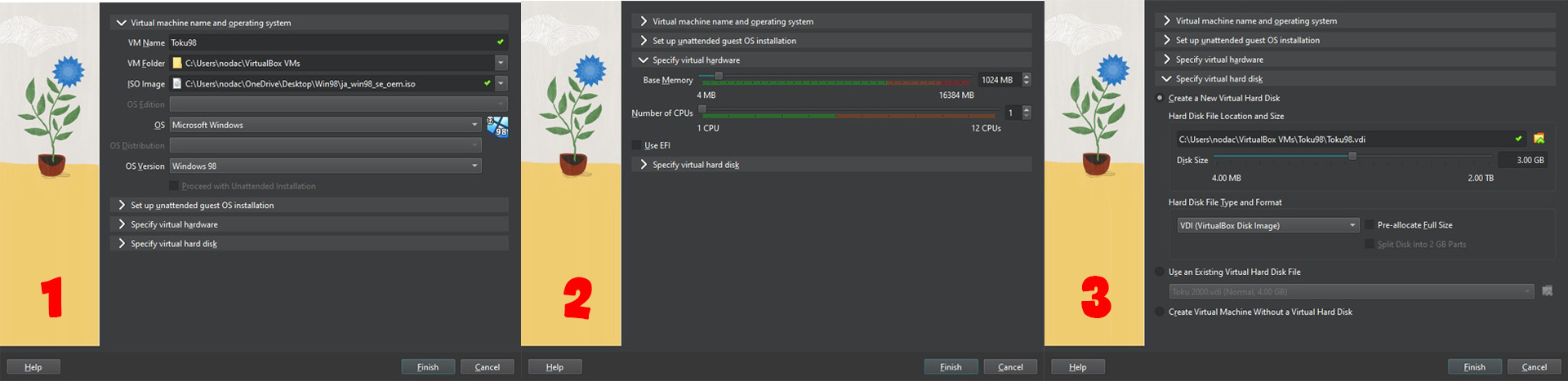
Note: You can press right ctrl while in the virtual machine to tab out
Installation Guide:
Boot up the Win98 machine then select the following: Boot from CD-Rom -> 1st Option -> "Space" for English Keyboard.
Afterwards, follow the timestamped Youtube Installation Guide while checking the notes below. The guide is in English, but will follow the exact same way in Japanese.
- Pause at 4:07, press Boot from CD-ROM -> Start Windows 98 Setup from CD-ROM -> then press Space. Continue guide from 4:53
- Pause at 10:41; You will get an error saying that SHELL32.DLL is missing.
- File -> Close -> Power off the machine
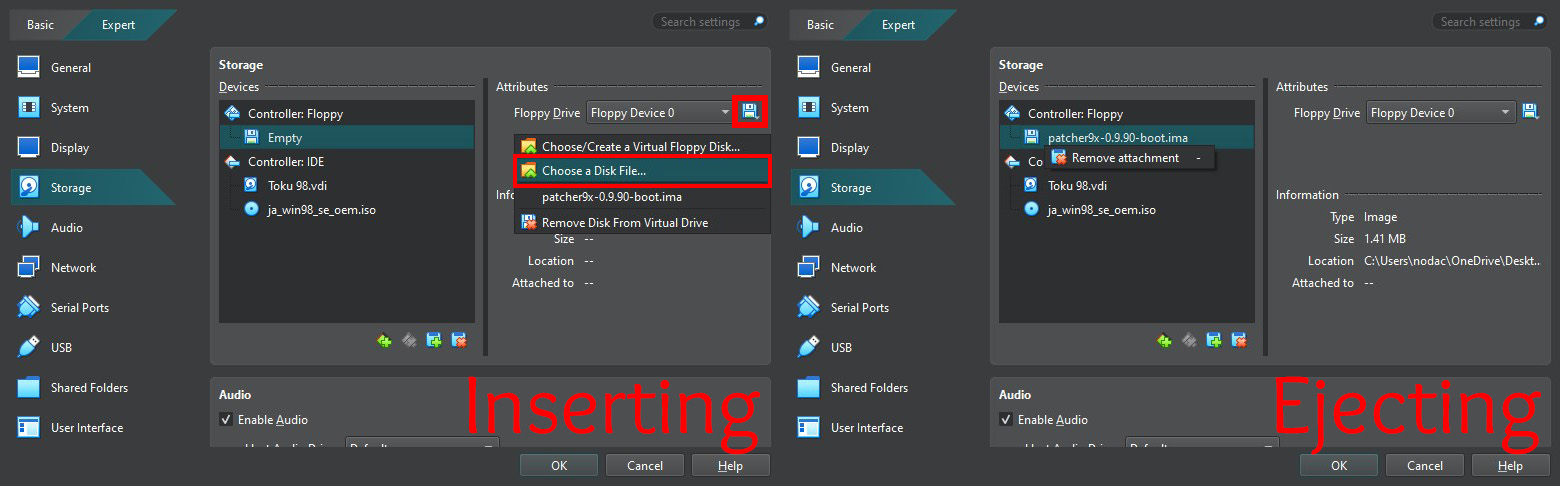
- Highlight your Win98 VM -> Settings -> Storage -> Click the Floppy Icon in the Attributes -> Choose a Disk File -> Insert patcher9x-0.9.90-boot.ima -> Press OK
- Start up Win98 VM -> First Option -> Type patch9x & Enter -> Enter -> 1 -> Y -> Power off VM -> Go back to Settings -> Storage -> Right click patcher9x-0.9.90-boot.ima & remove attachment -> Press OK
- Start up Win98 VM -> Boot from Hard Disk -> Continue guide from 11:00
Inserting/Ejecting for patcher9x-0.9.90-boot.ima
And voilà, Windows 98 is now running! However, we currently have a limited color palette. Don't worry, we will fix that up! For now, power off the VM.
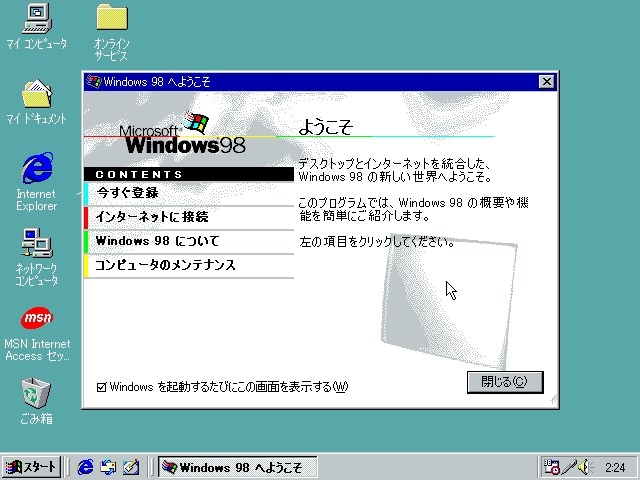
To achieve full colors:
- Highlight your Win98 VM -> Settings -> Display -> Set Video Memory to 64 MB -> OK -> Start up Win98 VM (It may crash once, just reboot it back up)
- Select Devices -> Optical Drives -> Choose a disk file -> 256color.iso -> Force unmount -> Follow the rest of the timestamped Youtube Installation Guide while checking the notes below (Video goes pretty quickly, I reccomend slowing it down).
- Pause at 4:11 You will get an error, press the right button, then continue the guide
- After restarting Win98 VM; Go back to 3:25 until you reach the color settings, then change colors to High Color (16 bit)
- Optional: Can also change the screen resolution, but game will auto resize when choosing full screen
If done correctly, your screen should look like this:
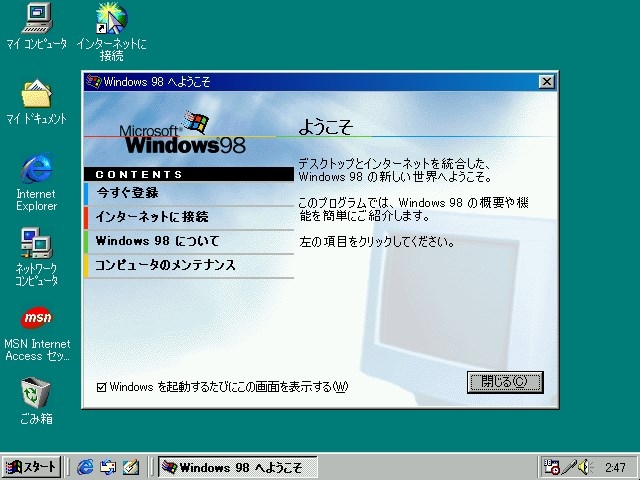
Example of Installing game:
To install Fantastic Fortune:
- Select Devices -> Optical Drives -> Choose a disk file -> FF_Disc1.iso -> Force Unmount
- Select マイ コンピュータ -> FF_Disc1 (D:) -> Setup (Computer image)
- FF Disc 2 is not needed probably till later in game to switch discs
To access Fantastic Fortune after installing:
- Select マイ コンピュータ -> C: -> Program Files -> FUJITSU GAME -> Fantastic Fortune -> ファンタスティックフォーチュン (Full Screen = Y, Windowed = N)
- Requires FF_Disc1.iso to be inserted to play
- To exit out of full screen mode, press the Escape key
1. Oracle VirtualBox
2. Win98 Japanese ISO (Serial Number: B8MFR-CFTGQ-C9PBW-VHG3J-3R3YW)
3. patcher9x-0.9.90-boot.ima
4. 256 colors
Setup Notes:
After Launching Virtual Box, Press New and fill in the following:
- VM Name: I personally do [Username]98 to differentiate operating systems
- OS/OS Version: Microsoft Windows/Windows 98
- ISO Image: Wherever you downloaded Win98 Japanese ISO.
- Base Memory: 1024 MB
- Disk Size: At least 3GB, put more if you plan on installing more than 1 game
Note: You can press right ctrl while in the virtual machine to tab out
Installation Guide:
Boot up the Win98 machine then select the following: Boot from CD-Rom -> 1st Option -> "Space" for English Keyboard.
Afterwards, follow the timestamped Youtube Installation Guide while checking the notes below. The guide is in English, but will follow the exact same way in Japanese.
- Pause at 4:07, press Boot from CD-ROM -> Start Windows 98 Setup from CD-ROM -> then press Space. Continue guide from 4:53
- Pause at 10:41; You will get an error saying that SHELL32.DLL is missing.
- File -> Close -> Power off the machine
- Highlight your Win98 VM -> Settings -> Storage -> Click the Floppy Icon in the Attributes -> Choose a Disk File -> Insert patcher9x-0.9.90-boot.ima -> Press OK
- Start up Win98 VM -> First Option -> Type patch9x & Enter -> Enter -> 1 -> Y -> Power off VM -> Go back to Settings -> Storage -> Right click patcher9x-0.9.90-boot.ima & remove attachment -> Press OK
- Start up Win98 VM -> Boot from Hard Disk -> Continue guide from 11:00
Inserting/Ejecting for patcher9x-0.9.90-boot.ima
And voilà, Windows 98 is now running! However, we currently have a limited color palette. Don't worry, we will fix that up! For now, power off the VM.
To achieve full colors:
- Highlight your Win98 VM -> Settings -> Display -> Set Video Memory to 64 MB -> OK -> Start up Win98 VM (It may crash once, just reboot it back up)
- Select Devices -> Optical Drives -> Choose a disk file -> 256color.iso -> Force unmount -> Follow the rest of the timestamped Youtube Installation Guide while checking the notes below (Video goes pretty quickly, I reccomend slowing it down).
- Pause at 4:11 You will get an error, press the right button, then continue the guide
- After restarting Win98 VM; Go back to 3:25 until you reach the color settings, then change colors to High Color (16 bit)
- Optional: Can also change the screen resolution, but game will auto resize when choosing full screen
If done correctly, your screen should look like this:
Example of Installing game:
To install Fantastic Fortune:
- Select Devices -> Optical Drives -> Choose a disk file -> FF_Disc1.iso -> Force Unmount
- Select マイ コンピュータ -> FF_Disc1 (D:) -> Setup (Computer image)
- FF Disc 2 is not needed probably till later in game to switch discs
To access Fantastic Fortune after installing:
- Select マイ コンピュータ -> C: -> Program Files -> FUJITSU GAME -> Fantastic Fortune -> ファンタスティックフォーチュン (Full Screen = Y, Windowed = N)
- Requires FF_Disc1.iso to be inserted to play
- To exit out of full screen mode, press the Escape key
Last edited:


 . I have yet to try messing up with VM, so guide specifically for VN is absolutely bombastic