

- Mar 10, 2024
- 170
- 1,663
Last Updated: 2026/02/04
First of all, start by downloading the latest version of Luna Translator.
Luna Translator supports hooking Nintendo Switch (Citron & Eden ONLY), PSP, PSV, PS2, and PC games. Full list of compatible games is listed here, alongside the download links for the emulators. If a game isn't supported, you can make a request on their Github (Requires an account).
PC:
1. Launch Luna Translator and your game of choice.
2. On Luna, select the cog gear to open up the settings.

3. In the Core Settings tab, choose HOOK as your Text Input.
4. Below Text Input is the HOOK settings. Press the chain icon next to Select Game and it will pop up a new window.
5. Select your game by either scrolling down to the program, or using the "Click me, then click the game window" method. You will then get another pop up window.
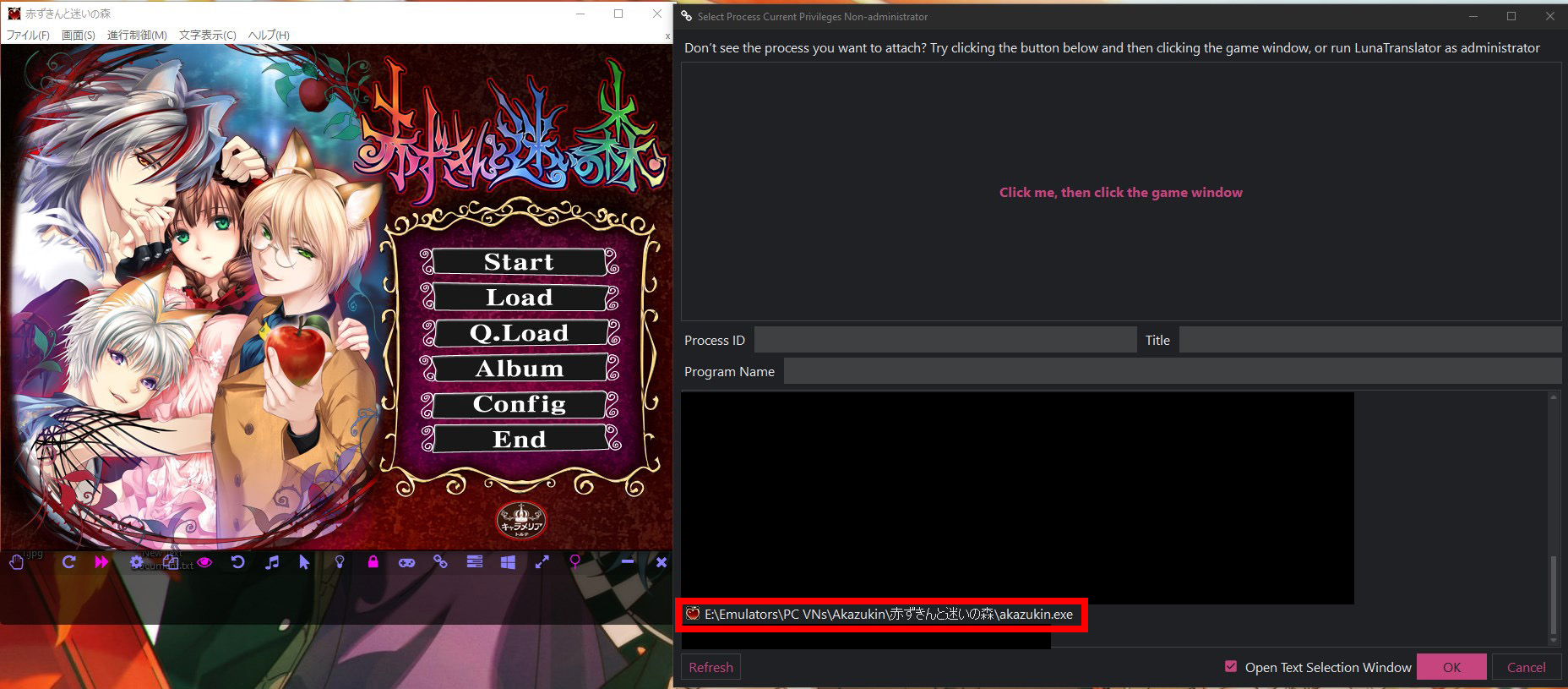
6. Start your game until you come across some dialogue. Select the option that is most accurate. Hooray! Game text is now hooked onto Luna.
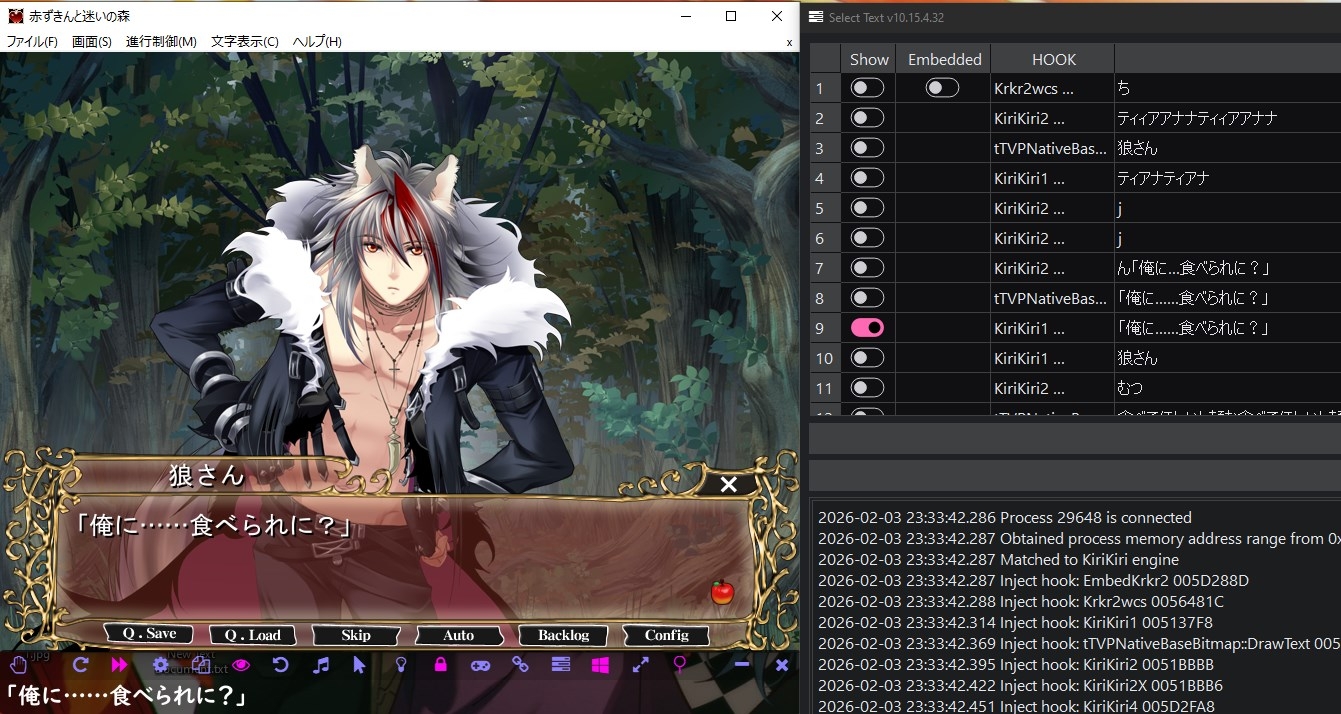
7. Head back to the settings option and select the Dictionary Settings tab.
8. Now it is up to you as to which tools you would like to use. Luna Translator provides extensive and easy to read guides on how to set things up.
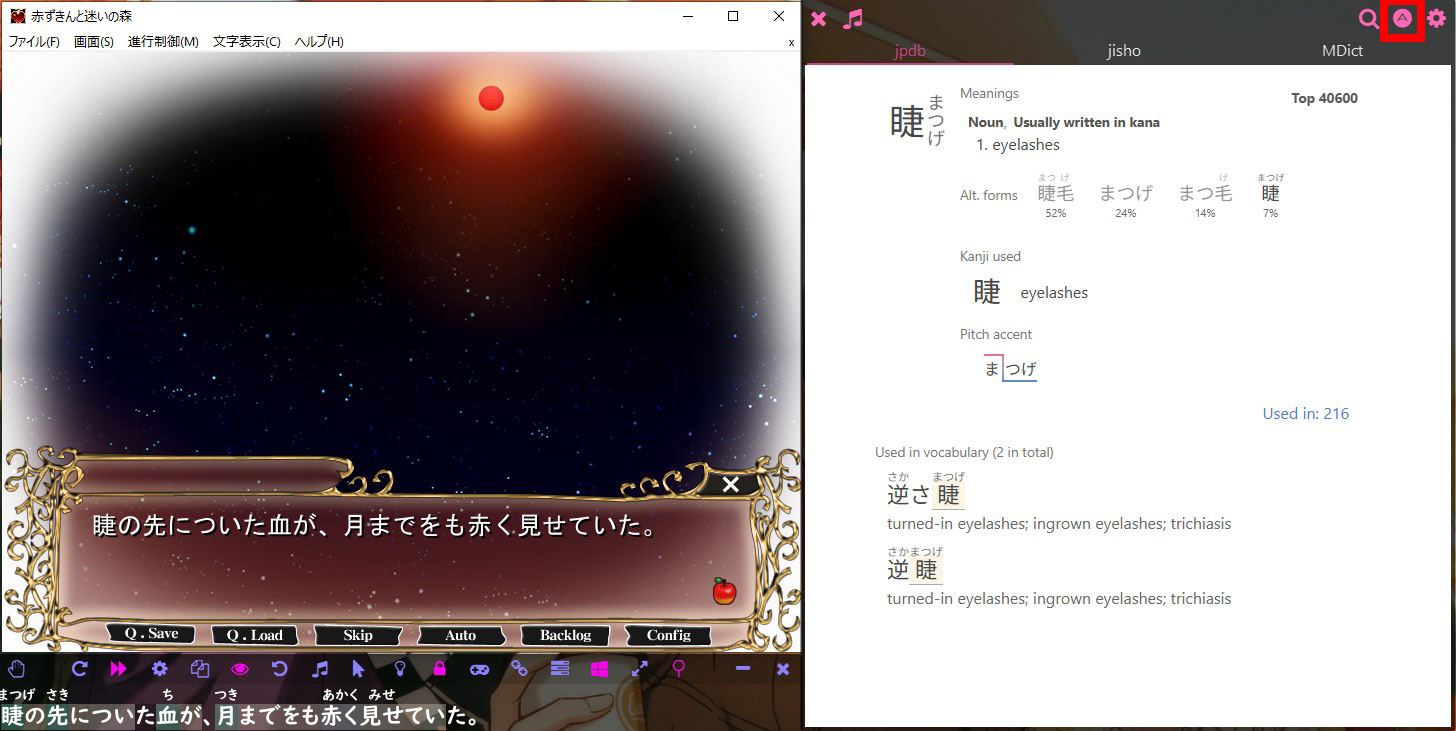
There are: Furigana, Yomitan Browser Extension, Anki Integration, and Built-in Dictionary Tool. For Yomitan I recomend the dictionaries that are listed here.
To access Anki, you need to look up a word and press the A button as shown in the image below.
End result example using Furigana & Built-in Dictionary Tool:
Switch, PSP, PSV, PS2:
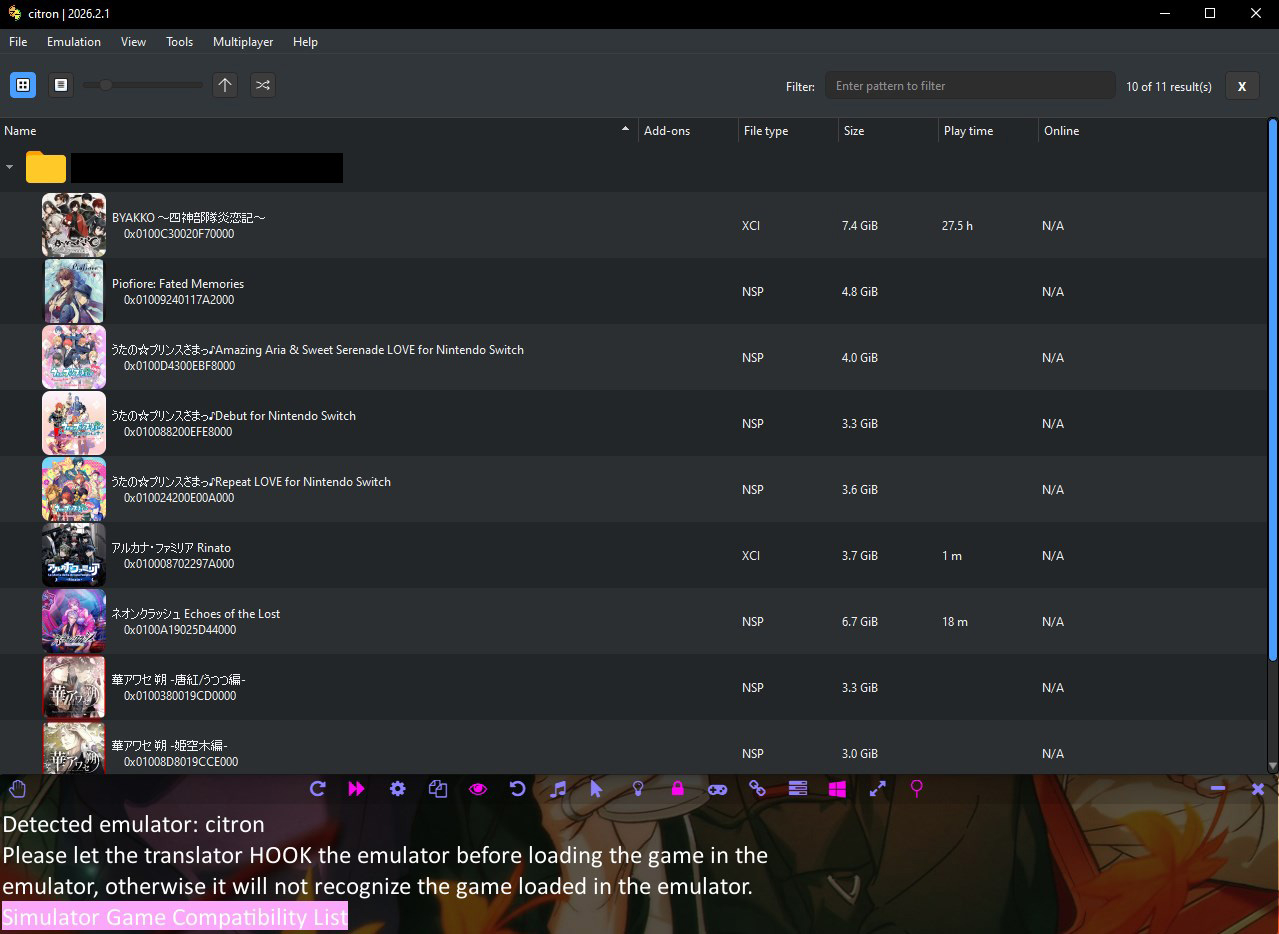
Almost the same as PC steps. However, you MUST hook to the emulator before launching the game. Luna also provides a cautionary warning as a reminder!
Ganbatte!
First of all, start by downloading the latest version of Luna Translator.
Luna Translator supports hooking Nintendo Switch (Citron & Eden ONLY), PSP, PSV, PS2, and PC games. Full list of compatible games is listed here, alongside the download links for the emulators. If a game isn't supported, you can make a request on their Github (Requires an account).
PC:
1. Launch Luna Translator and your game of choice.
2. On Luna, select the cog gear to open up the settings.
3. In the Core Settings tab, choose HOOK as your Text Input.
4. Below Text Input is the HOOK settings. Press the chain icon next to Select Game and it will pop up a new window.
5. Select your game by either scrolling down to the program, or using the "Click me, then click the game window" method. You will then get another pop up window.
6. Start your game until you come across some dialogue. Select the option that is most accurate. Hooray! Game text is now hooked onto Luna.
7. Head back to the settings option and select the Dictionary Settings tab.
8. Now it is up to you as to which tools you would like to use. Luna Translator provides extensive and easy to read guides on how to set things up.
There are: Furigana, Yomitan Browser Extension, Anki Integration, and Built-in Dictionary Tool. For Yomitan I recomend the dictionaries that are listed here.
To access Anki, you need to look up a word and press the A button as shown in the image below.
End result example using Furigana & Built-in Dictionary Tool:
Switch, PSP, PSV, PS2:
Almost the same as PC steps. However, you MUST hook to the emulator before launching the game. Luna also provides a cautionary warning as a reminder!
Ganbatte!
Last edited: